
Did you know that Zoho CRM can display modules, fields, dropdown values, and other CRM elements in different languages for different users, while keeping the underlying data consistent?
For organizations with teams working across different languages, this means users can navigate and manage CRM information in the language that works best for them without creating separate systems or compromising reporting.
Introduction:
When teams work across different regions and languages, even something as simple as a field name or sales stage can create confusion. If users are constantly translating CRM terminology as they work, data entry becomes less consistent, and the CRM itself becomes harder to use.
Zoho CRM’s Translations feature helps address this by allowing organizations to customize how CRM elements appear based on each user’s configured language. Module names, dropdown lists, system and custom field labels, layouts, sections, related lists, and global sets can all be translated.
Step-by-Step Instructions:
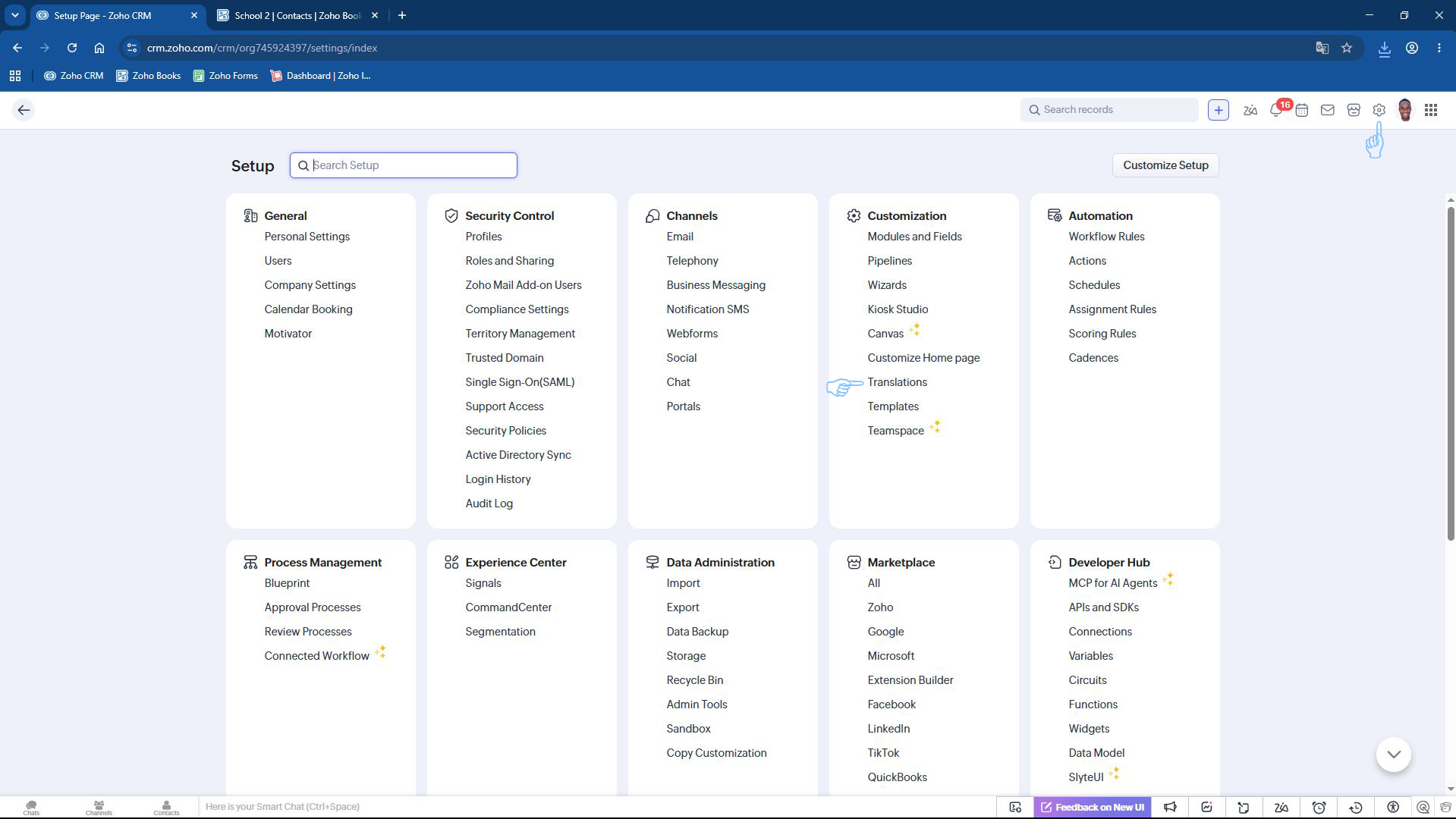
Step 1: Access Translations
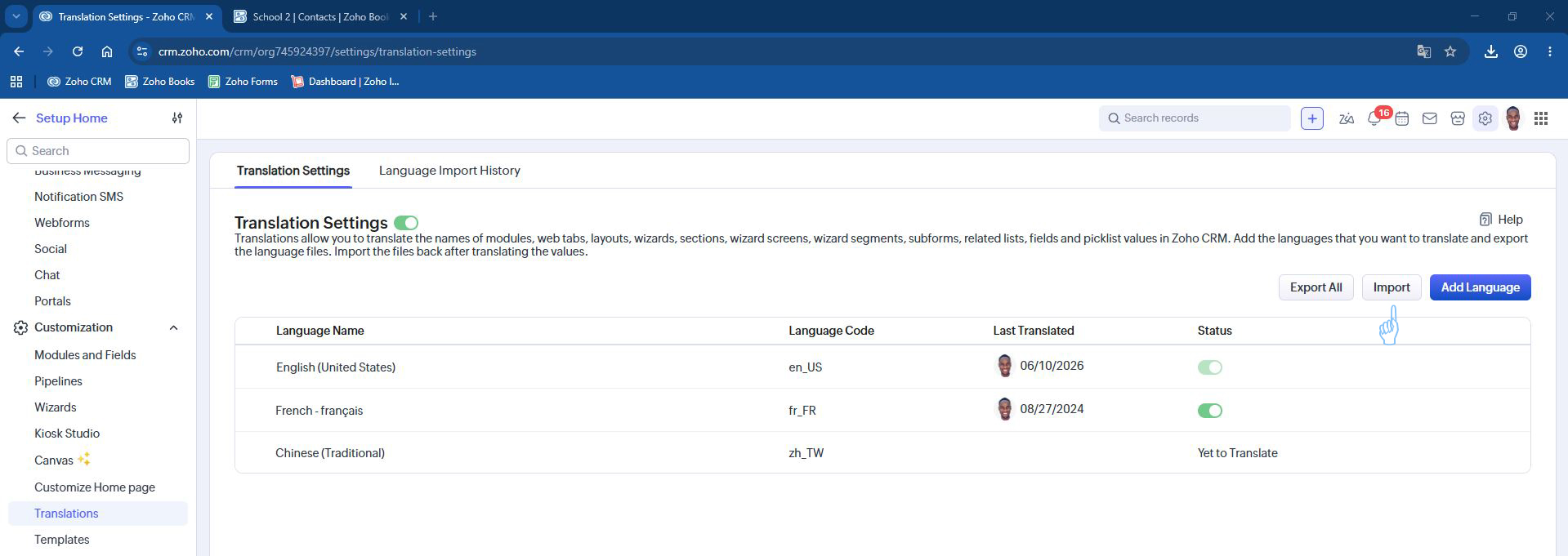
In Zoho CRM, go to Settings. Under Personalization, select Translations.
This is where you can manage the languages available for your CRM.
Step 2: Add a Language
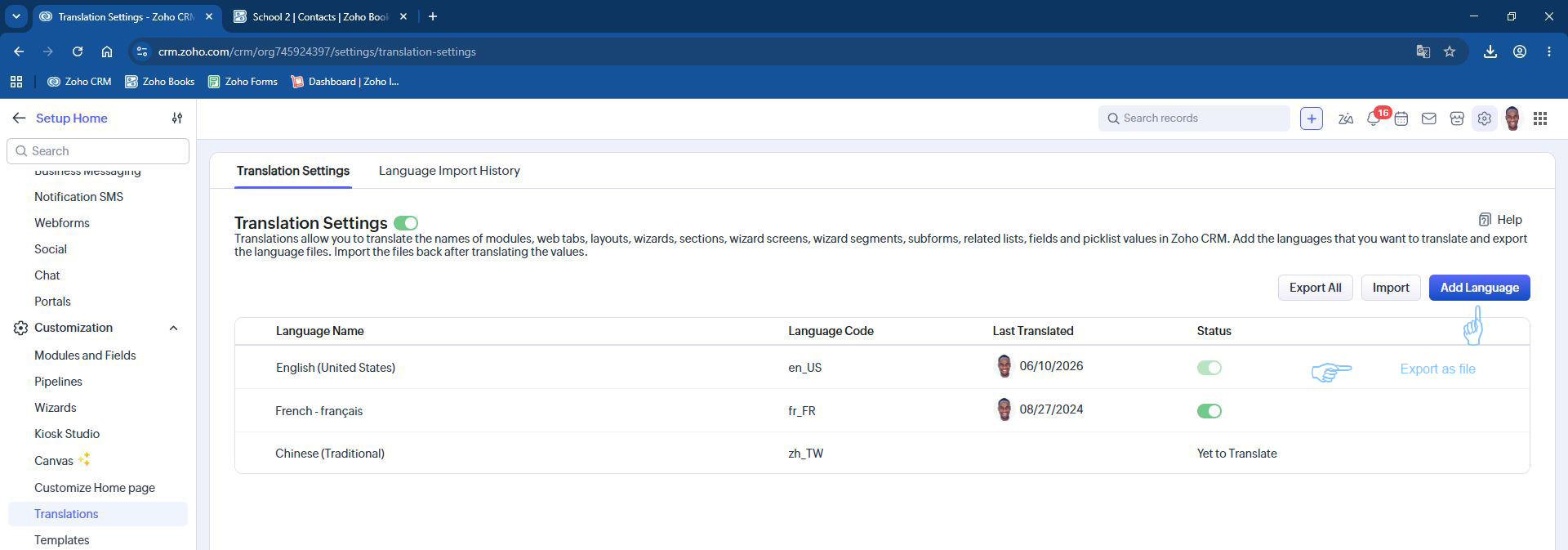
From the Translations window, add the language you want to make available to your users. Once added, it will appear in your list of available languages.
Step 3: Export the Translation File
Locate the language you added and hover to the right of its status. Select Export as file to download the translation file.
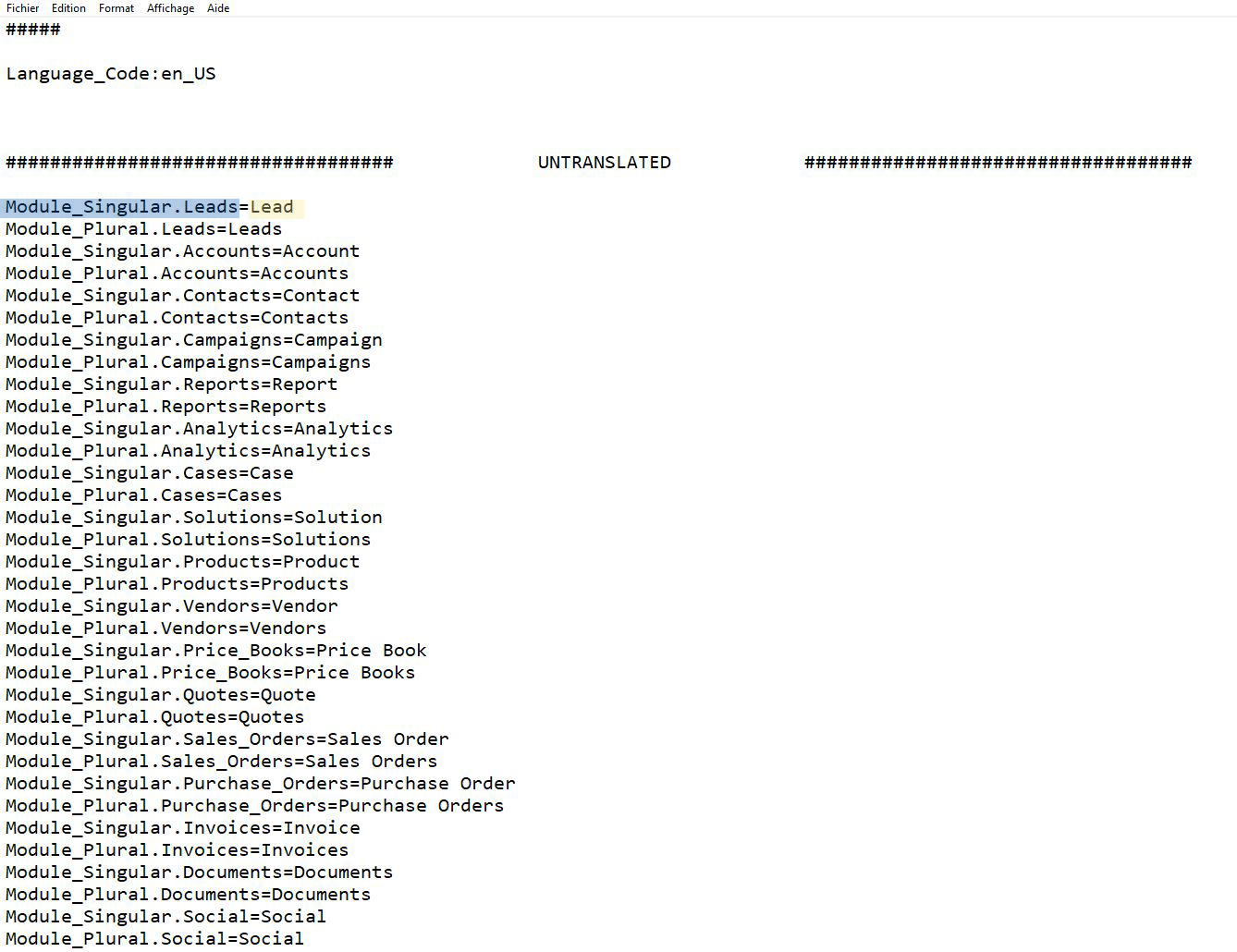
The exported .txt file contains the CRM elements that can be translated.
Step 4: Edit the Translation File
Open the downloaded .txt file in a text editor such as Notepad.
Each entry contains two parts separated by an equals sign (=):
- The part on the left, highlighted in blue, is the system name. This should remain unchanged.
- The part on the right, highlighted in yellow, is the displayed value. This is the text you will translate or adjust for the selected language.
For example, if you are translating a field or module name, only update the value highlighted in yellow while leaving the system name in blue as is.
Once you have completed your translations, save the file.
Step 5: Import the Updated Translation
Return to the Translations window in Zoho CRM and select Import.
Choose your updated translation file and confirm the import. Zoho CRM will notify you once the update is complete.
What Does This Improve?
For multilingual organizations, translating the CRM is about more than changing what appears on the screen.
Giving users familiar terminology can make the CRM easier to navigate and help reduce misunderstandings when entering information. At the same time, the underlying data remains consistent, allowing managers to work with consolidated reporting even when team members are viewing CRM terminology in different languages.
It also gives organizations more flexibility as teams expand into new regions. Additional languages and translated values can be introduced without rebuilding the CRM for each market.
A CRM Built Around the People Using It
A CRM should support the way your team works, including the language they work in.
Zoho CRM Translations helps remove a simple but important barrier to adoption by making the system easier for users to understand and navigate.
Sometimes, getting more from your CRM starts with making it work better for the people using it.
quire changing the process. It starts by making the system easier for everyone to understand.


