

Did you know that you can send documents for signature directly from Zoho CRM, reducing manual steps and keeping everything in one place?
Managing documents manually can slow down your sales and onboarding processes, especially when contracts need to be sent at the right stage. By connecting Zoho Sign with Zoho CRM, you can send signature requests directly from your CRM records and keep everything aligned in one system. This helps reduce delays, improve accuracy, and ensures your documents are sent when they should be. In this guide, you’ll learn how to integrate Zoho Sign within Zoho CRM to simplify your document workflow.
Step-by-Step Instructions:
Install Zoho Sign via Zoho CRM
1. In your Zoho CRM account, click the Settings icon in the top navigation bar.
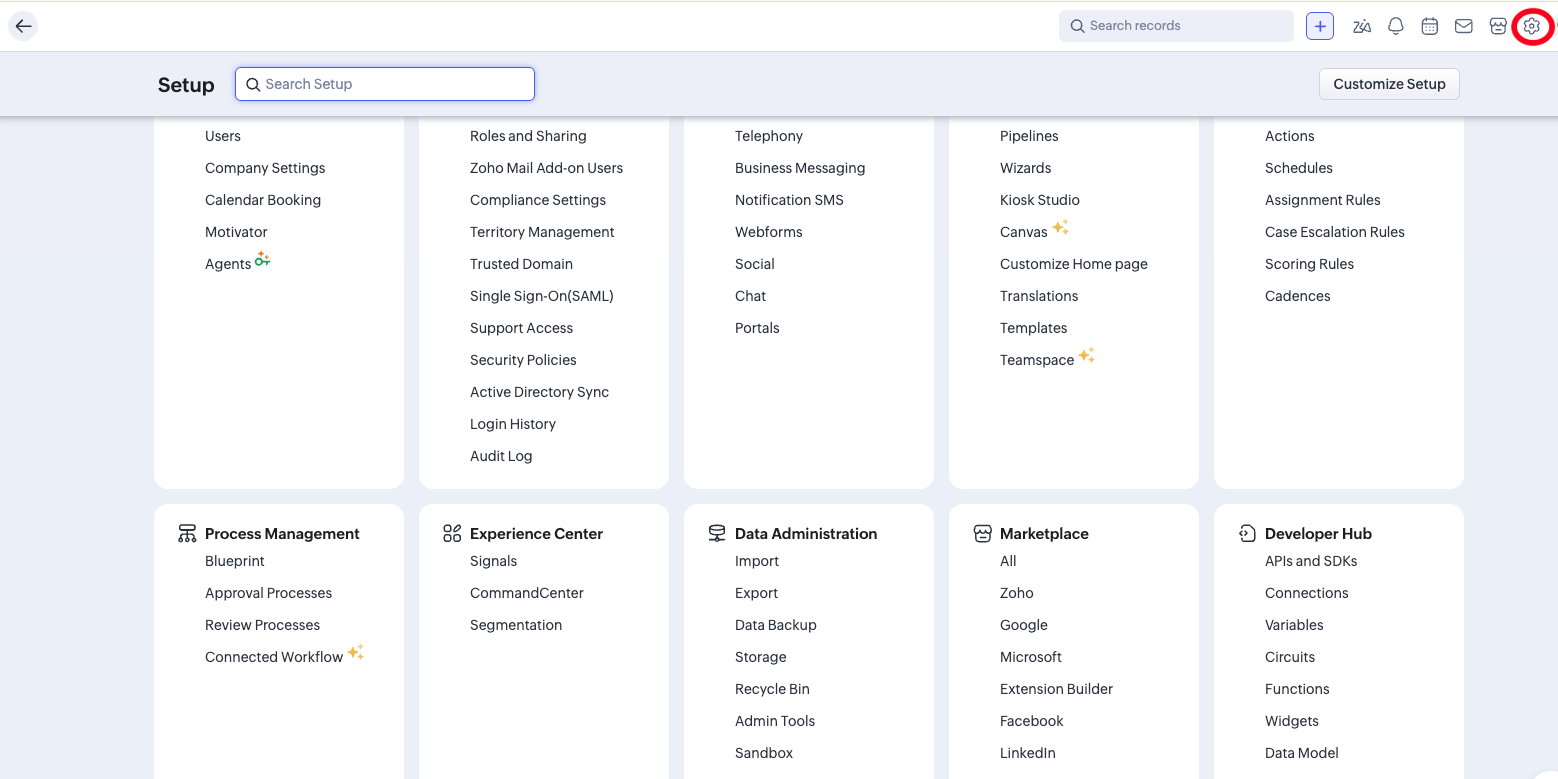
2. Under Marketplace, select Zoho, then search for Zoho Sign.

3.Click Install and follow the prompts to proceed.
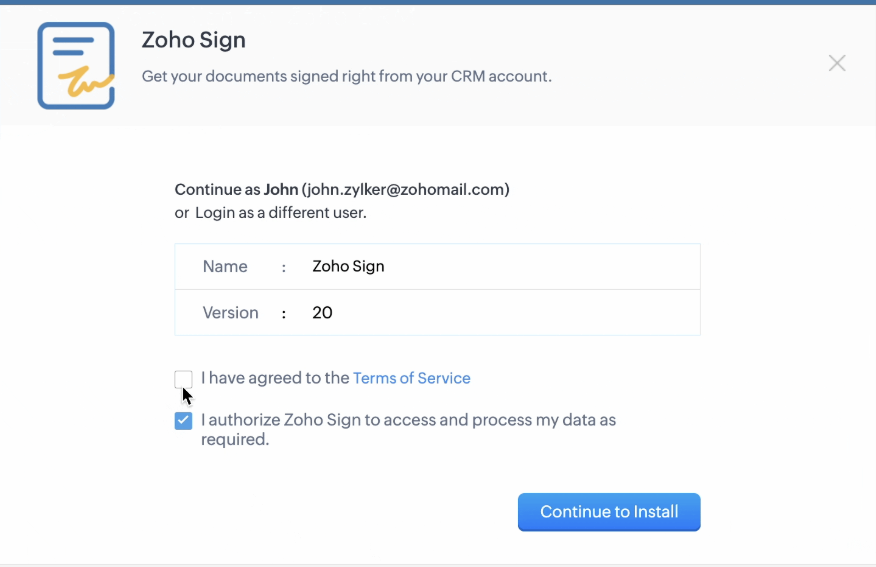
4. Decide who should have access by selecting one of the available options: admin only, all users, or specific profiles.
- Admins only: installs for all administrator accounts
- All users: installs for every CRM user
- Selected profiles: installs only for chosen profiles
5. Click Confirm to complete the setup.

Note:
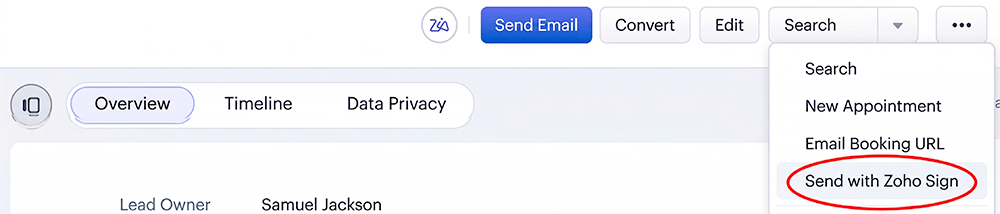
After installing the Zoho Sign extension, a Send with Zoho Sign button will be available in the following modules: Leads, Contacts, Deals, Accounts, Quotes, Invoices, Sales Orders, and Purchase Orders.
In addition, three new sub-modules will be added to Zoho CRM. You can access them by clicking Other Modules in the top navigation bar:
- ZohoSign Document Events: Displays the status of each document. This information is also visible within individual CRM records.
- ZohoSign Documents: Provides a complete list of documents sent from Zoho CRM.
- ZohoSign Recipients: Shows the recipients who have been sent documents.


