Did you know that you can create, manage, and publish your entire event from one place, keeping registrations, schedules, and attendee information fully organized?
Introduction:
Smart Prompt in Zoho CRM helps teams reduce the time spent researching companies and contacts while manually documenting information. By leveraging AI, it can generate company and contact summaries based on predefined questions, providing valuable insights directly within the CRM. This not only improves data consistency and accuracy but also reduces the effort required to gather and organize information. In this guide, we’ll demonstrate how Smart Prompt can be used to automate company and contact research, helping teams work more efficiently and focus on higher-value activities.
Scenario
A web development and marketing company relies on its sales team to research companies and contacts before initiating outreach. This process requires representatives to spend a significant amount of time gathering information online and manually documenting their findings in Zoho CRM.
To improve efficiency, the company wants to automatically generate company and contact summaries based on predetermined questions within the Lead module. The generated summary can then be copied directly into a multi-line field, reducing manual effort and ensuring key information is captured consistently.
Step 1: Activate AI in Zoho CRM
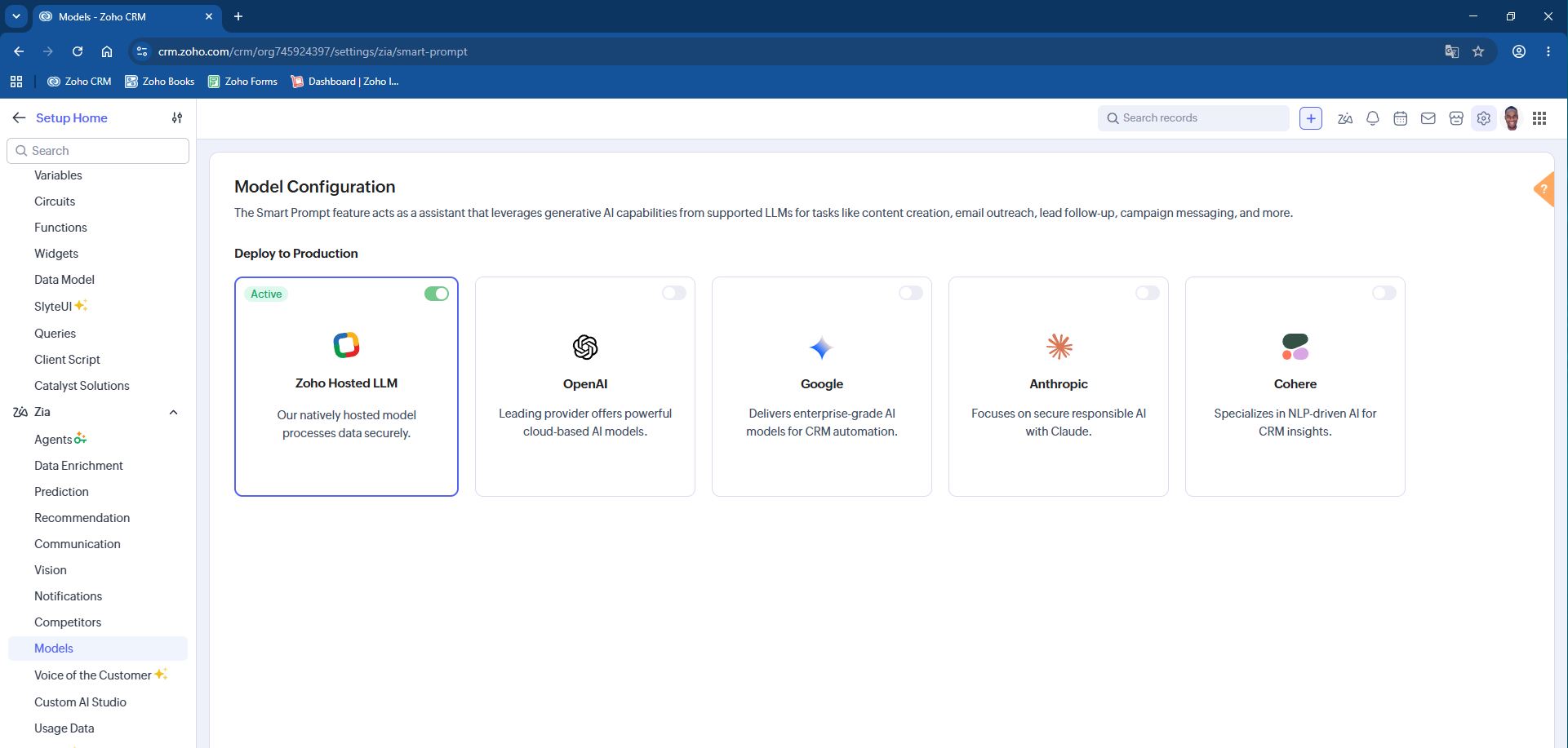
Before configuring Smart Prompt, AI must be enabled in Zoho CRM. For this example, we will use the Zoho Hosted LLM.
To begin, click the Setup icon (1). Under the Zia section, select Models (2).
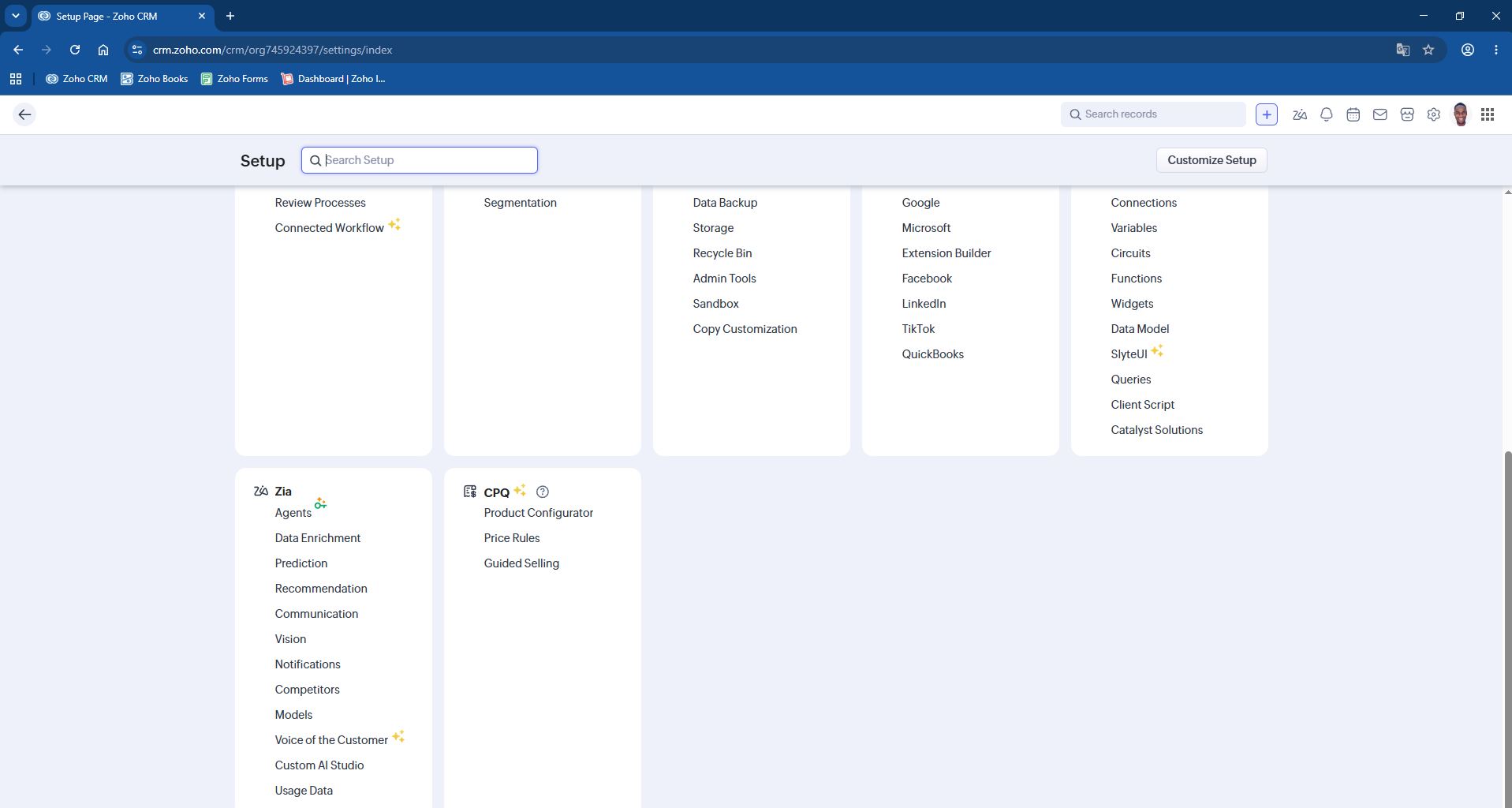
Activate Zoho Hosted LLM (3)
Step 2: Create the Smart Prompt Button
Next, we’ll create a button within the Lead module that will trigger the Smart Prompt.
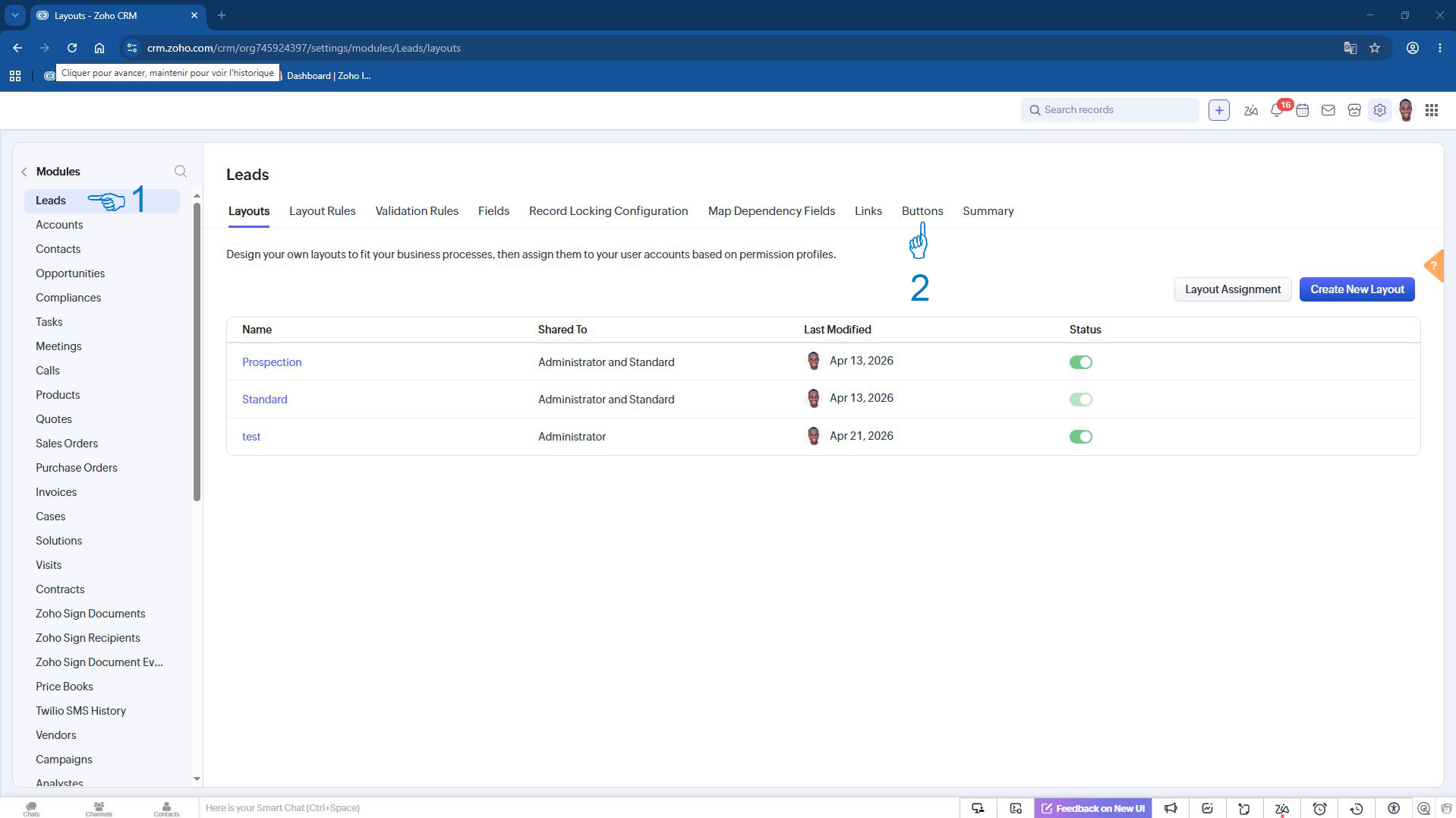
Navigate to Modules and Fields and select the Lead module (1).
Click Buttons (2).
Select Create Custom Button.
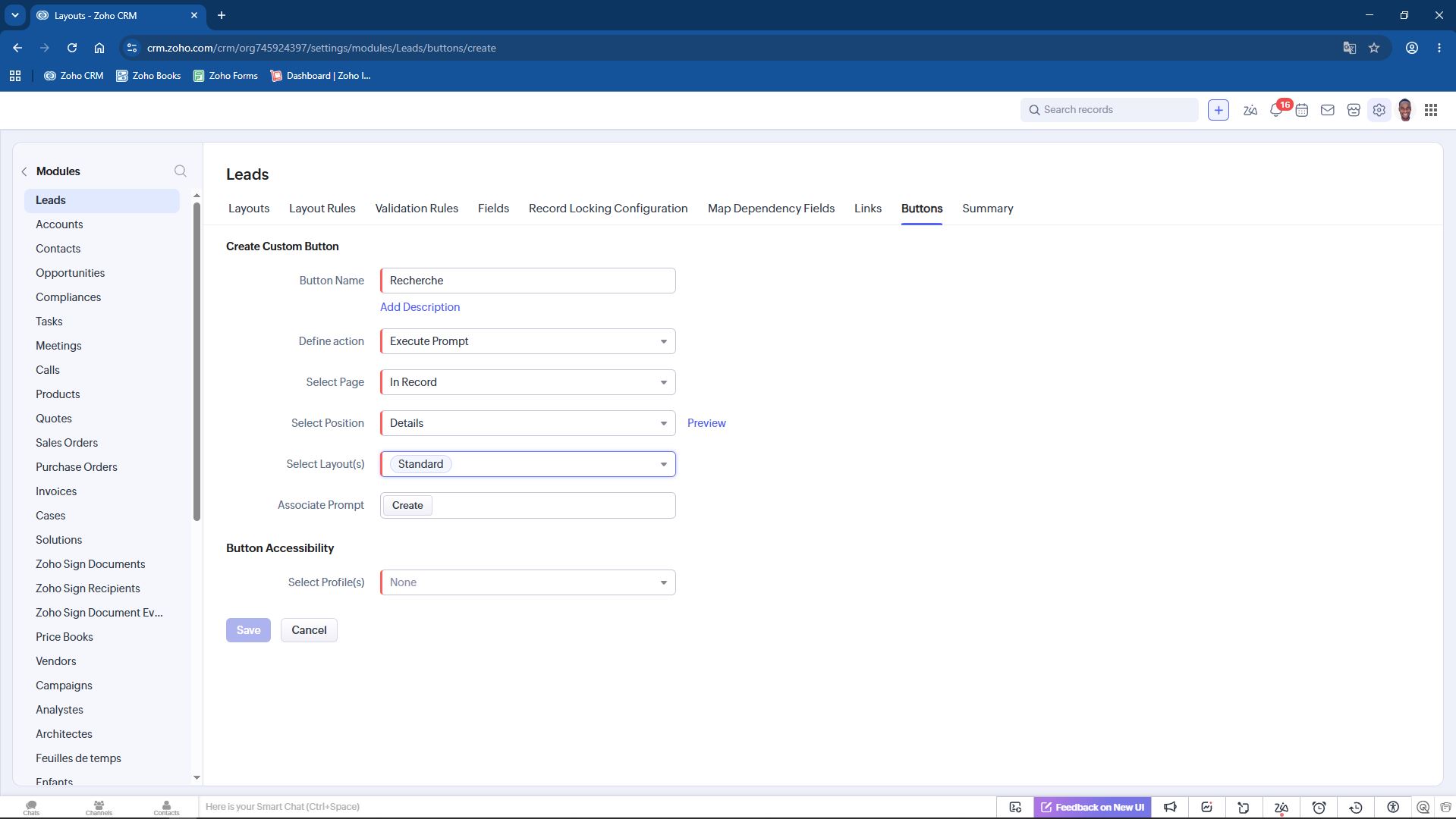
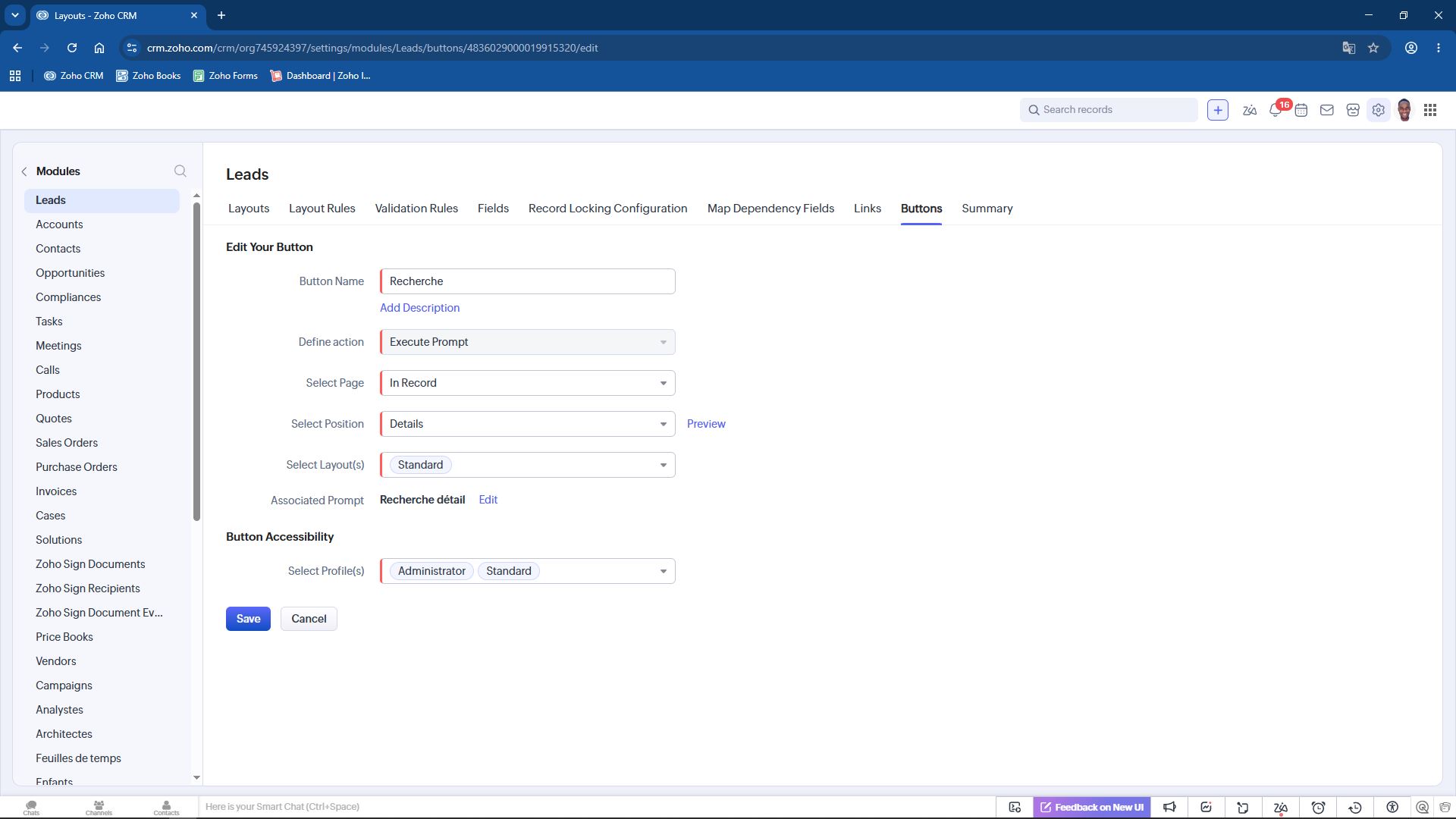
Configure the button using the following settings:
- Button Name: Enter the name that will be displayed on the button.
- Define Action: Select Execute Prompt.
- Select Page: Choose In Record.
- Select Position: Choose Details.
- Select Layout(s): Select the desired layout(s), such as Standard.
Next, create the prompt that will be associated with the button:
- Under Associated Prompt, click Create.
- Enter a Prompt Name.
- Select the profiles that should have access to the button.
- Click Save.
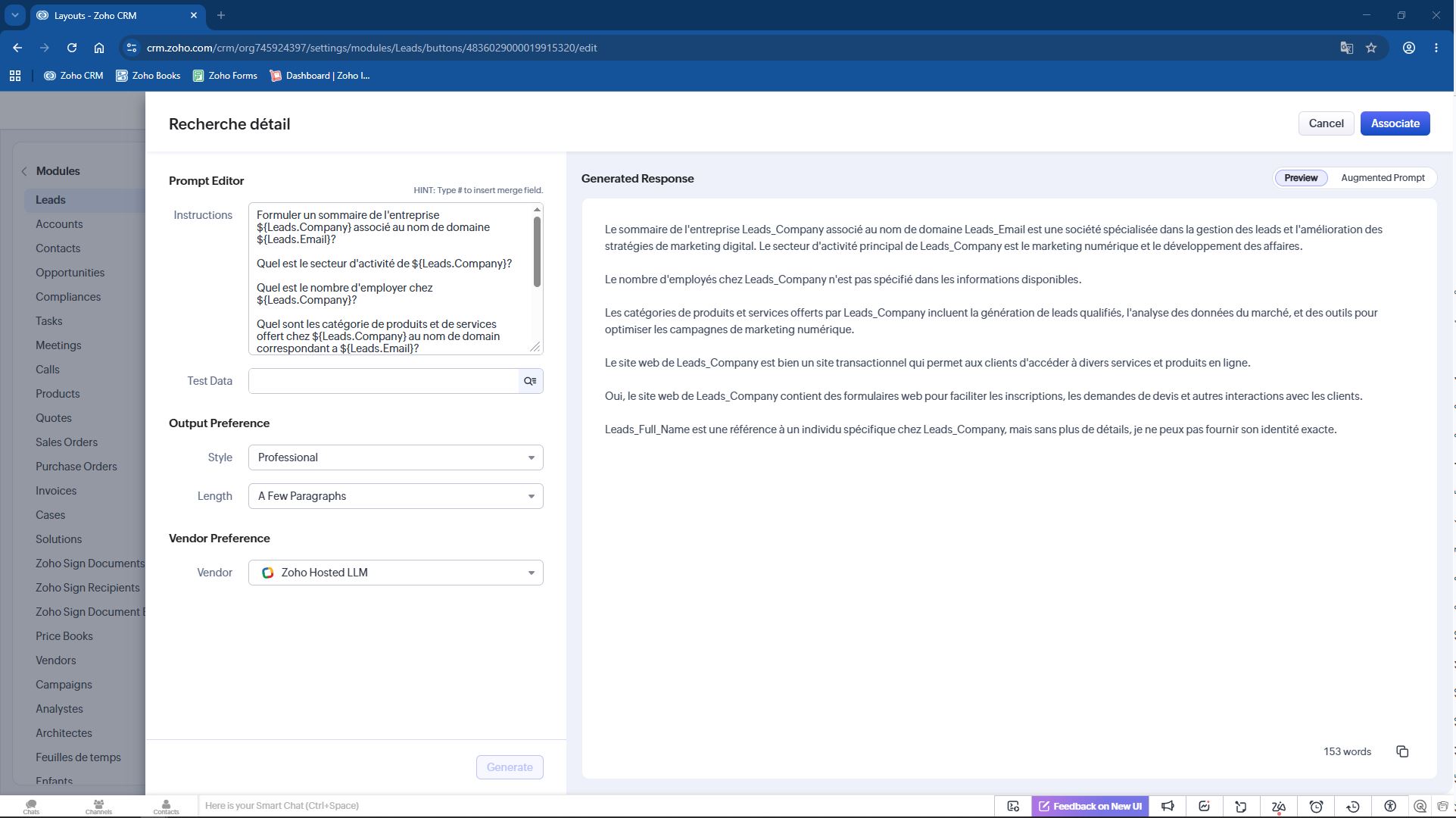
Configure the prompt by entering your instructions, merge fields, preferred response style, response length, and AI vendor.
Once complete:
- Click Generate to test the prompt.
- Click Associate to link the prompt to the button.
The Smart Prompt button is now available within Lead records. Users can generate company and contact summaries and save the results in Notes or a custom multi-line field for future reference.